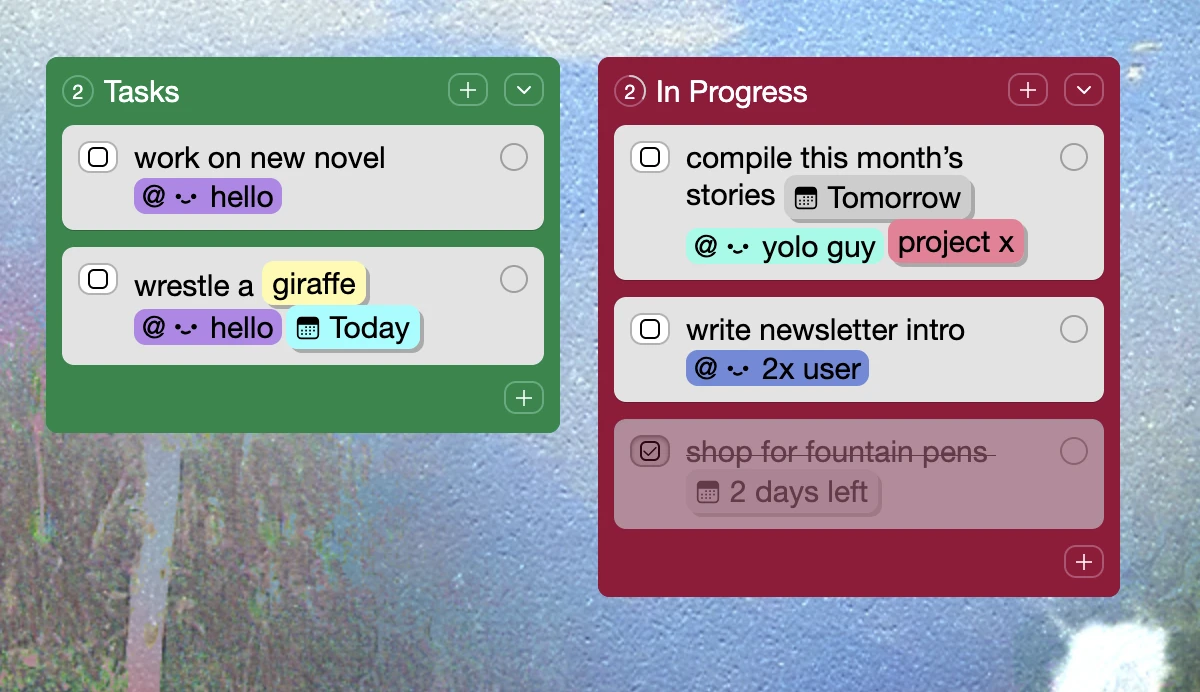

@User Mentions and Due Dates
To keep Kinopio safe, only signed in users can use @mentions
@User
Type @ in a card to assign cards to space collaborators, group members, as well as non-member contributors in an Open to Comments space. @mentioned users will be receive an email notification about the card.
You can also bulk assign by paint selecting cards and using the @ button
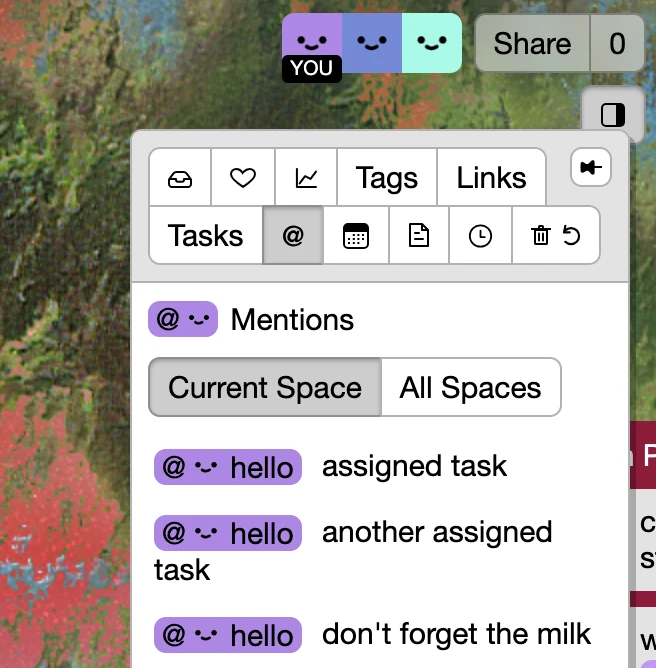
Use Sidebar → @ to stay on top of the cards that have been assigned to you, in the current space or across all spaces.
Due Dates
You can also use @ to add due dates to cards. Either by clicking a date, or by typing out a date with the following syntaxes:
@1dwill add a date1day from now.@2dwill do2days from now. And so on.@todayand@tomorrow@nov20or@jan5specify dates with the 3 letter month code and the day number (no spaces)
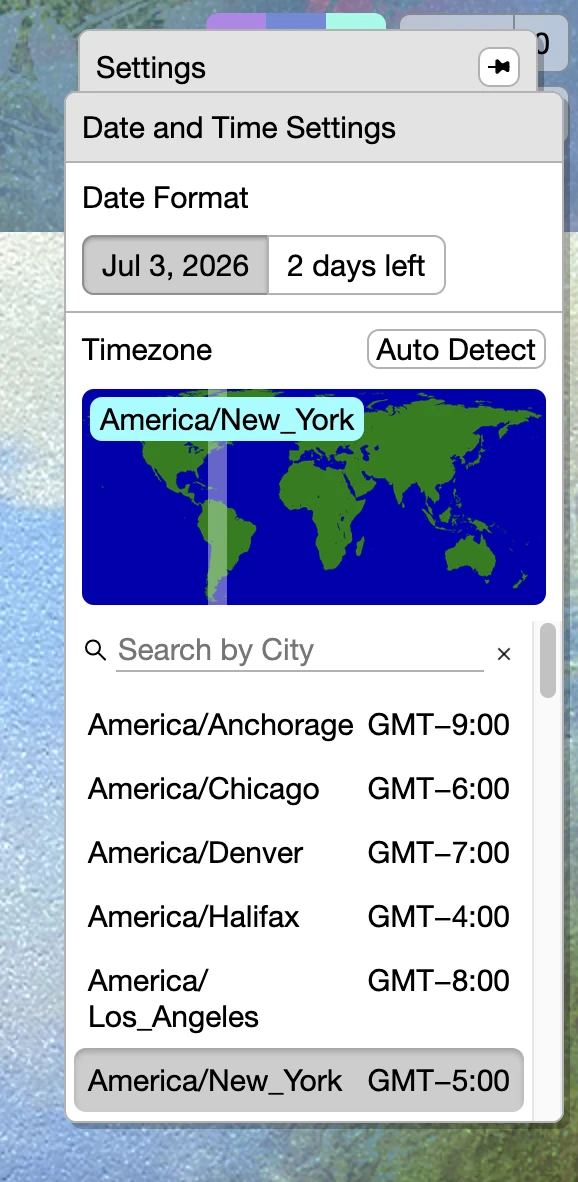
When the due date arrives, space members and group members who have contributed to the space will receive an email notification at 7am in their local timezone. Timezone is auto-detected but you can change it in Settings → Date and Time.
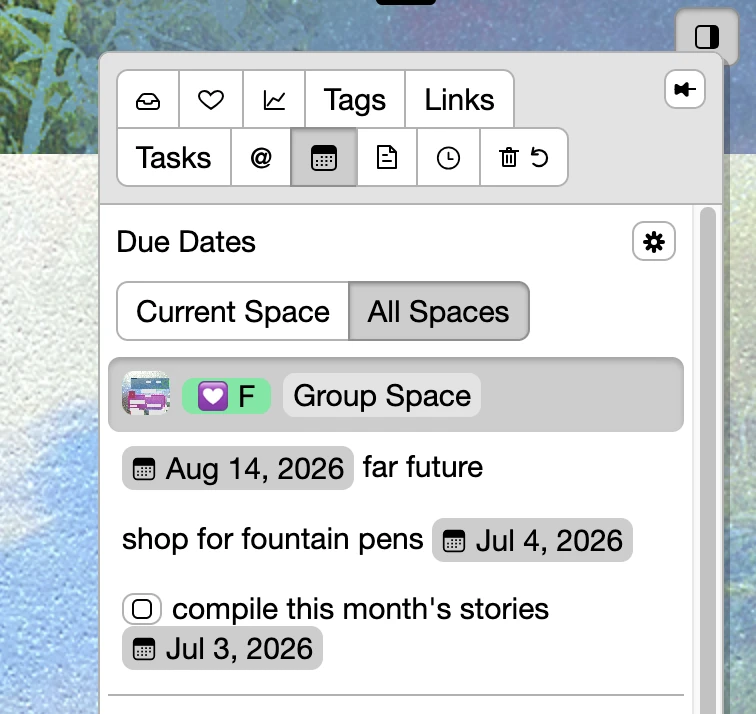
Just like with Tasks, use Sidebar → Due Dates to view, and jump to, your upcoming due dates across all your spaces.
Bring it all together by combining checkboxes and tags with @user mentions and due dates and you have all the elements of project management.